# List Credit History
Source: https://docs.ledgerbeam.com/api-reference/billing/credit-history
GET /billing/credit-history
Retrieve credit usage history
## Overview
Retrieve credit usage history. This endpoint returns detailed information about your credit usage over time, including daily usage, remaining credits, and period summaries.
# List Plans
Source: https://docs.ledgerbeam.com/api-reference/billing/plans
GET /billing/plans
Retrieve available billing plans
## Overview
Retrieve available billing plans. This endpoint returns information about all available subscription plans, including pricing, features, and limits.
# Archive Thread
Source: https://docs.ledgerbeam.com/api-reference/chats/archive-thread
PUT /chats/threads/{thread_id}/archive
Archive a conversation thread
## Overview
Archive a conversation thread. Archived threads are hidden from the default thread list but can still be accessed.
# Create Message
Source: https://docs.ledgerbeam.com/api-reference/chats/create-message
POST /chats/messages
Create a new message in a chat thread to query your data using natural language
## Overview
Create a new message in a chat thread to query your data using natural language. This endpoint processes your question, generates appropriate queries, executes them against your connected resource, and returns intelligent responses.
# Delete Thread
Source: https://docs.ledgerbeam.com/api-reference/chats/delete-thread
DELETE /chats/threads/{thread_id}
Permanently delete a conversation thread and all its messages
## Overview
Permanently delete a conversation thread and all its messages. This action cannot be undone.
# List Messages
Source: https://docs.ledgerbeam.com/api-reference/chats/list-messages
GET /chats/threads/{thread_id}/messages
Retrieve all messages in a specific conversation thread
## Overview
Retrieve all messages in a specific conversation thread. Messages are returned in chronological order.
# List Render Options
Source: https://docs.ledgerbeam.com/api-reference/chats/list-render-options
GET /chats/render-options
Retrieve available render options for message content
## Overview
Retrieve available render options for message content. Render options define how different types of content (text, tables, charts, etc.) are displayed in messages.
# List Threads
Source: https://docs.ledgerbeam.com/api-reference/chats/list-threads
GET /chats/threads
Retrieve a list of all conversation threads
## Overview
Retrieve a list of all conversation threads in your organization. Threads represent individual conversations about your data.
# Update Thread
Source: https://docs.ledgerbeam.com/api-reference/chats/update-thread
PUT /chats/threads/{thread_id}
Update a conversation thread's metadata
## Overview
Update a conversation thread's metadata, such as its name.
# Introduction
Source: https://docs.ledgerbeam.com/api-reference/introduction
Welcome to the Ledgerbeam API Reference. Our RESTful API provides programmatic access to conversational analytics, allowing you to query your data using natural language, manage resources, and interact with your data sources.
## Base URL
All API requests should be made to:
```
https://api.ledgerbeam.com/v1
```
## Authentication
All API requests require authentication using your API key. Include it in the `API-KEY` header:
```bash theme={null}
API-KEY: YOUR_API_KEY
```
See our [Authentication guide](../authentication) for details on obtaining and using your API key.
## Request Format
All requests should include the following headers:
* `Content-Type: application/json`
* `API-KEY: YOUR_API_KEY`
## Response Format
All API responses are returned in JSON format with the following structure:
### Success Response
```json theme={null}
{
// Response data here
}
```
### Error Response
```json theme={null}
{
"error": {
"field_name": [
"Error message here"
]
}
}
```
Or for general errors:
```json theme={null}
{
"error": "Error message here"
}
```
## Rate Limits
* **Free Plan**: 1,000 requests per minute
* **Pro Plan**: 10,000 requests per minute
* **Enterprise Plan**: Custom limits
Rate limit headers are included in all responses:
* `X-RateLimit-Limit`: Maximum requests per window
* `X-RateLimit-Remaining`: Remaining requests in current window
* `X-RateLimit-Reset`: Time when the rate limit resets
## Error Handling
The API uses standard HTTP status codes:
* `200` - Success
* `400` - Bad Request (invalid parameters)
* `401` - Unauthorized (invalid API key)
* `403` - Forbidden (insufficient permissions)
* `404` - Not Found
* `429` - Too Many Requests (rate limit exceeded)
* `500` - Internal Server Error
See our [Error Handling guide](../errors) for detailed error information.
## Getting Started
1. **Get your API key** from the [dashboard](https://app.ledgerbeam.com)
2. **Connect a resource** using the [Resources API](./resources/create)
3. **Make your first query** using the [Chat API](./chats/create-message)
4. **Explore the endpoints** to understand all available features
## Support
Need help with the API? Check out our:
* [Quick Start Guide](../chat/quickstart)
* [Error Handling](../errors) documentation
* [Support](mailto:support@ledgerbeam.com) team
# Check Connection Status
Source: https://docs.ledgerbeam.com/api-reference/resources/check-connection
POST /resources/check-connection/{id}
Check the connection status of a resource
## Overview
Check the connection status of a specific resource. This endpoint tests the connectivity to the resource and returns the current status.
# Create Resource
Source: https://docs.ledgerbeam.com/api-reference/resources/create
POST /resources
Create a new resource
## Overview
Create a new resource. Resources represent data sources like databases, APIs, or files that can be connected to Ledgerbeam for data analysis and processing.
# Delete Resource
Source: https://docs.ledgerbeam.com/api-reference/resources/delete
DELETE /resources/{id}
Delete a specific resource
## Overview
Delete a specific resource. This endpoint permanently removes a resource and all its associated data from Ledgerbeam.
# Get Resource
Source: https://docs.ledgerbeam.com/api-reference/resources/get
GET /resources/{id}
Retrieve a specific resource by ID
## Overview
Retrieve a specific resource by its ID. This endpoint allows you to get detailed information about a resource including its configuration and status.
# List Resources
Source: https://docs.ledgerbeam.com/api-reference/resources/list
GET /resources
Retrieve a list of resources
## Overview
Retrieve a list of resources. Resources represent data sources like databases, APIs, or files that can be connected to Ledgerbeam for data analysis and processing.
# Update Resource
Source: https://docs.ledgerbeam.com/api-reference/resources/update
PUT /resources/{id}
Update a specific resource
## Overview
Update a specific resource. This endpoint allows you to modify the configuration and metadata of an existing resource.
# Validate Connection
Source: https://docs.ledgerbeam.com/api-reference/resources/validate-connection
POST /resources/validate-connection
Validate a resource connection before creating
## Overview
Validate a resource connection before creating it. This endpoint tests the connection parameters without actually creating the resource, allowing you to verify connectivity and configuration.
# Authentication
Source: https://docs.ledgerbeam.com/authentication
Start using Ledgerbeam's conversational analytics API in minutes. Create an account, get your API key, and begin querying your data with natural language.
## Sign Up for Free
Create your account on our [dashboard](https://app.ledgerbeam.com) to access all features. New accounts automatically receive free credits for testing and development.
## Set Up Your Workspace
After signing up, you'll be guided through creating your workspace. This is where you'll manage your API keys, connect your data sources, view usage analytics, and configure your integration settings.
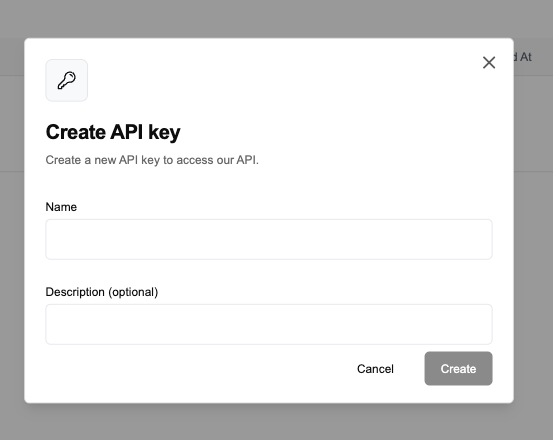
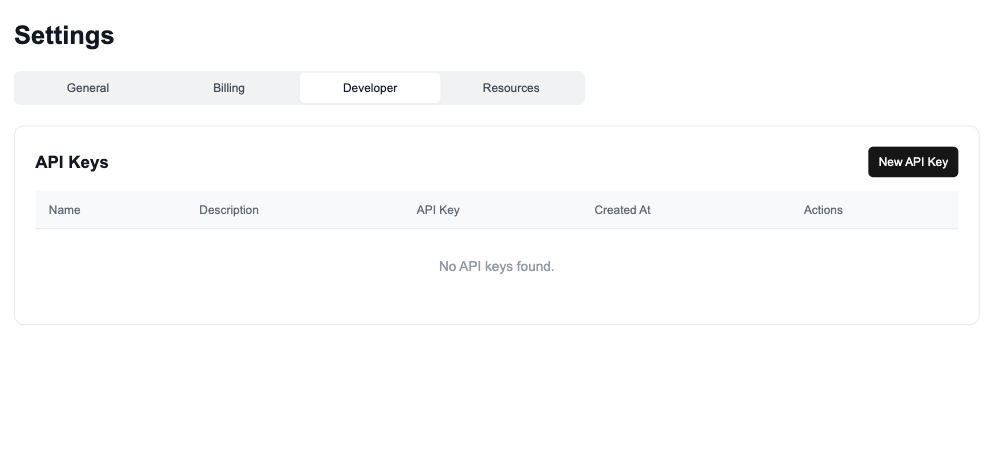 ## Get Your API Key
Create an API key for your workspace. You can find it in the [API Keys section](https://app.ledgerbeam.com/settings/developer) of your dashboard.
 ### Using Your API Key
Include your API key in the `API-KEY` header of your requests:
```bash theme={null}
curl -X POST https://api.ledgerbeam.com/v1/chats/messages \
-H "API-KEY: YOUR_API_KEY" \
-H "Content-Type: application/json" \
-d '{
"resource_id": "your_resource_id",
"content": "What are my top customers this month?"
}'
```
## Security Best Practices
* **Keep your API key secure** - Never expose it in client-side code or public repositories
* **Use environment variables** - Store your API key in secure environment variables
* **Rotate keys regularly** - Generate new keys periodically for enhanced security
* **Monitor usage** - Check your dashboard regularly for unusual activity
* **Secure your data connections** - Use encrypted connections and store credentials securely
## Rate Limits
Account creation is free. Paid plans include higher limits and priority processing. Check your current plan in the [dashboard](https://app.ledgerbeam.com/settings/billing).
## Need Help?
* **Documentation**: Explore our [API reference](./api-reference/introduction) for detailed examples
* **Support**: Contact us at [support@ledgerbeam.com](mailto:support@ledgerbeam.com)
* **Community**: Join our [Discord](https://discord.gg/ledgerbeam) for developer discussions
# Overview
Source: https://docs.ledgerbeam.com/chat/overview
Conversational analytics lets you interact with your data using natural language. Instead of writing SQL queries or building dashboards, you can simply ask questions and receive intelligent, context-aware answers.
## How It Works
When you send a message to Ledgerbeam, our AI-powered system processes your natural language query through several sophisticated steps:
### Understanding Your Query
Our AI analyzes your question to understand intent, identifies the data you're asking about, recognizes context from previous messages in the conversation, and determines the best approach to answer your question.
### Query Generation
The system automatically generates optimized SQL queries based on your data schema, validates queries before execution to ensure safety and accuracy, handles complex joins and aggregations automatically, and optimizes for performance and efficiency.
### Data Execution
Queries are executed against your connected data sources securely, results are processed and validated for accuracy, and the system handles errors gracefully with helpful error messages.
### Intelligent Response
Results are formatted in the most appropriate way—tables for structured data, charts for trends, summaries for insights—and presented with context and explanations to help you understand the answer.
## Conversation Threads
Each conversation is organized into threads, allowing you to maintain context across multiple questions. Threads remember previous queries and answers, enabling natural, flowing discussions about your data.
### Thread Management
* **Create new threads** - Start a fresh conversation about a new topic
* **Continue existing threads** - Build on previous questions and answers
* **Archive threads** - Keep your workspace organized
* **Delete threads** - Remove conversations you no longer need
## Streaming Responses
For real-time interactions, you can enable streaming responses. This provides immediate feedback as the AI processes your query, showing thinking steps, query generation, and results as they become available.
## Supported Data Sources
Ledgerbeam connects to a wide variety of data sources:
* **Databases**: PostgreSQL, MySQL, Supabase
* **Spreadsheets**: Google Sheets
* **Business Tools**: Stripe, Airtable, and more
* **Custom APIs**: Connect to any REST API
## Getting Started
Ready to start querying your data? Check out our [API Reference](/api-reference/chats/create-message) for detailed endpoint documentation, or visit our [Quick Start Guide](/chat/quickstart) to begin making queries in minutes.
# Quick Start
Source: https://docs.ledgerbeam.com/chat/quickstart
Get started with Ledgerbeam's conversational analytics in just a few minutes. This guide will walk you through connecting a data source and making your first query.
## Prerequisites
* A Ledgerbeam account ([sign up here](https://app.ledgerbeam.com))
* An API key (see [Authentication](./authentication))
* A data source to connect (database, spreadsheet, etc.)
## Step 1: Connect Your Data Source
First, you'll need to connect a data source. This could be a database, spreadsheet, or other business tool.
### Connect a Database
```bash theme={null}
curl -X POST https://api.ledgerbeam.com/v1/resources \
-H "API-KEY: YOUR_API_KEY" \
-H "Content-Type: application/json" \
-d '{
"name": "My Database",
"type": "postgres",
"uri": "postgresql://user:password@host:5432/database"
}'
```
### Connect Google Sheets
```bash theme={null}
curl -X POST https://api.ledgerbeam.com/v1/resources \
-H "API-KEY: YOUR_API_KEY" \
-H "Content-Type: application/json" \
-d '{
"name": "Sales Data",
"type": "google_sheets",
"uri": "https://docs.google.com/spreadsheets/d/YOUR_SHEET_ID"
}'
```
## Step 2: Make Your First Query
Once your data source is connected, you can start asking questions:
```bash theme={null}
curl -X POST https://api.ledgerbeam.com/v1/chats/messages \
-H "API-KEY: YOUR_API_KEY" \
-H "Content-Type: application/json" \
-d '{
"resource_id": "your_resource_id",
"content": "What are my top 10 customers by revenue this month?"
}'
```
## Step 3: Continue the Conversation
You can continue asking follow-up questions in the same thread:
```bash theme={null}
curl -X POST https://api.ledgerbeam.com/v1/chats/messages \
-H "API-KEY: YOUR_API_KEY" \
-H "Content-Type: application/json" \
-d '{
"resource_id": "your_resource_id",
"thread_id": "thread_id_from_previous_response",
"content": "Show me a breakdown by region"
}'
```
## Step 4: Enable Streaming (Optional)
For real-time responses, enable streaming:
```bash theme={null}
curl -X POST https://api.ledgerbeam.com/v1/chats/messages \
-H "API-KEY: YOUR_API_KEY" \
-H "Content-Type: application/json" \
-d '{
"resource_id": "your_resource_id",
"content": "What are my sales trends?",
"stream": true
}'
```
## Example Response
```json theme={null}
{
"user_message": {
"id": "msg_123",
"content": "What are my top customers?",
"role": "user"
},
"assistant_message": {
"id": "msg_124",
"content": "Here are your top customers by revenue...",
"role": "assistant"
},
"meta": {
"answer": "Your top customers are...",
"metrics": {
"row_count": 10,
"query_time": "0.45s",
"query": "SELECT ..."
}
},
"thread_id": "thread_abc123"
}
```
## Next Steps
* Explore the [Chat API Reference](/api-reference/chats/create-message) for detailed documentation
* Learn about [Resources](/resources/overview) and connecting data sources
* Check out [Advanced Features](/chat/advanced) for more capabilities
# Error Handling
Source: https://docs.ledgerbeam.com/errors
Ledgerbeam uses conventional HTTP response codes to indicate the success or failure of an API request. In general: Codes in the 2xx range indicate success. Codes in the 4xx range indicate an error that failed given the information provided (e.g., a required parameter was omitted, a request failed, etc.). Codes in the 5xx range indicate an error with Ledgerbeam's servers (these are rare).
| Code | Description |
| -------------------------------------- | ----------------------------------------------------------------------------------------------------------- |
| **200 - OK** | Everything worked as expected. |
| **400 - Bad Request** | The request was unacceptable, often due to missing a required parameter. |
| **401 - Unauthorized** | No valid API key was provided. |
| **402 - Request Failed** | The parameters were valid but the request failed. |
| **403 - Forbidden** | The API key doesn't have permission to perform the request. |
| **404 - Not Found** | The requested resource doesn't exist. |
| **409 - Conflict** | The request conflicts with another request. |
| **429 - Too Many Requests** | Too many requests hit the API too quickly. We recommend an exponential backoff of your requests. |
| **500, 502, 503, 504 - Server Errors** | Something went wrong on Ledgerbeam's end. These are rare and if they happen, please contact us immediately. |
## Error Response Format
Ledgerbeam uses two types of error response formats:
### Field Validation Errors
When validation fails for specific fields:
```json theme={null}
{
"error": {
"field_name": [
"This field is required"
]
}
}
```
### General Errors
For authentication and other general errors:
```json theme={null}
{
"error": "Unauthorized access"
}
```
## Common Error Scenarios
### Missing Required Field
```json theme={null}
{
"error": {
"field_name": [
"This field is required"
]
}
}
```
### Unauthorized Access
```json theme={null}
{
"error": "Unauthorized access"
}
```
### Invalid API Key
```json theme={null}
{
"error": "Invalid API key"
}
```
## Best Practices
* **Handle 429 errors gracefully** - Implement exponential backoff when you receive rate limit errors
* **Validate input data** - Check your request parameters before sending to avoid 400 errors
* **Keep API keys secure** - Ensure your API key is valid and has the necessary permissions
* **Monitor for 5xx errors** - Contact support immediately if you encounter server errors
## Need Help?
If you're encountering persistent errors or need assistance with error handling, please contact our support team at [support@ledgerbeam.com](mailto:support@ledgerbeam.com) with your request details and error responses.
# Introduction
Source: https://docs.ledgerbeam.com/index
Ledgerbeam is a conversational analytics platform that lets you talk to your data using natural language. Connect your databases, spreadsheets, and business tools, then ask questions in plain English to get instant, expert-level answers with beautiful visualizations and insights.
Stop building dashboards. Start talking to your data.
## Conversational Analytics
Ledgerbeam transforms how teams interact with their data. Instead of writing SQL queries or building complex dashboards, you can simply ask questions in natural language and receive instant, intelligent responses. Our AI-powered platform understands your data structure, generates optimized queries, and presents results in clear, actionable formats.
## Key Features
### Natural Language Queries
Ask questions in plain English and get instant answers. No SQL knowledge required. Our AI understands context, learns from your data structure, and generates accurate queries automatically.
### Universal Data Connections
Connect to any database, spreadsheet, or business tool. We support PostgreSQL, MySQL, Supabase, Google Sheets, Stripe, Airtable, and many more. Your data stays secure and accessible.
### Intelligent Responses
Get more than just raw data. Our AI provides context-aware answers, suggests follow-up questions, and presents results in tables, charts, and visualizations that make insights immediately actionable.
### Conversation Threads
Maintain context across multiple questions. Each conversation thread remembers previous queries, allowing for natural, flowing discussions about your data.
## Getting Started
You can start using Ledgerbeam once you have [signed up](https://app.ledgerbeam.com) on our dashboard. Check out our [authentication guide](./authentication) to get your API key and begin making queries.
## API Reference
We provide a comprehensive API reference covering all endpoints for managing resources, creating conversations, and querying your data. Every endpoint includes detailed descriptions, request examples, and response formats.
The API reference also covers general information such as [authentication](./authentication), [error handling](./errors), and [rate limits](./errors#rate-limits).
### Simple and Universal
Our API is designed to be simple and universal. No SDKs required, no complex setup—just straightforward HTTP requests that work with any programming language or framework.
```bash theme={null}
POST https://api.ledgerbeam.com/v1/chats/messages
```
## Billing and Pricing
Billing and pricing information are available in the [dashboard](https://app.ledgerbeam.com). If you have any questions, feel free to contact us at [support@ledgerbeam.com](mailto:support@ledgerbeam.com).
***
# Figma Integration
Source: https://docs.ledgerbeam.com/integrations/figma
Connect Ledgerbeam to Figma to export data visualizations and charts directly to your Figma designs, enabling you to create beautiful data-driven designs.
## Features
* Export charts and visualizations to Figma
* Create data-driven design components
* Sync data visualizations automatically
* Share insights through Figma designs
## Setup Instructions
1. Navigate to the Integrations page in your Ledgerbeam dashboard
2. Click on the Figma integration card
3. Click "Connect to Figma" to authorize Ledgerbeam
4. Sign in with your Figma account
5. Grant Ledgerbeam access to your Figma files
6. Click "Allow" to complete the connection
## Usage
Once connected, you can export visualizations to Figma:
1. Run a query in Ledgerbeam that generates a chart or visualization
2. Click the "Export to Figma" option
3. Select the target Figma file and frame
4. Choose the visualization format
5. Your chart will be added to the Figma design
## Supported Visualizations
* Bar charts
* Line charts
* Pie charts
* Tables
* Custom visualizations
## Permissions
The Figma integration requires:
* Read access to view files
* Write access to create and edit frames
* Access to your Figma team files
## Troubleshooting
If you encounter issues:
* Verify your Figma account connection is active
* Check that Ledgerbeam has the necessary file permissions
* Ensure the target Figma file exists and is accessible
* Review the export logs in your Ledgerbeam dashboard
## Need Help?
For additional support, contact us at [support@ledgerbeam.com](mailto:support@ledgerbeam.com).
# Google Docs Integration
Source: https://docs.ledgerbeam.com/integrations/google-docs
Connect Ledgerbeam to Google Docs to export data and reports directly to your Google Docs documents, making it easy to share insights with your team.
## Features
* Export query results to Google Docs
* Create formatted reports in Google Docs
* Insert tables and charts from query results
* Share documents with your team
## Setup Instructions
1. Navigate to the Integrations page in your Ledgerbeam dashboard
2. Click on the Google Docs integration card
3. Click "Connect to Google" to authorize Ledgerbeam
4. Sign in with your Google account
5. Grant Ledgerbeam access to Google Docs
6. Click "Allow" to complete the connection
## Usage
Once connected, you can export data to Google Docs:
1. Run a query in Ledgerbeam
2. Click the "Export to Google Docs" option
3. Select an existing document or create a new one
4. Choose where to insert the data
5. Your query results will be added to the document
## Export Options
* **New Document**: Create a new Google Doc with your query results
* **Existing Document**: Add results to an existing document
* **Table Format**: Export data as formatted tables
* **Report Format**: Create comprehensive reports with charts
## Permissions
The Google Docs integration requires:
* Read access to view documents
* Write access to create and edit documents
* Access to Google Drive to manage files
## Troubleshooting
If you're experiencing issues:
* Verify your Google account connection is active
* Check that Ledgerbeam has the necessary Google Docs permissions
* Ensure the target document exists and is accessible
* Review the export logs in your Ledgerbeam dashboard
## Need Help?
For additional support, contact us at [support@ledgerbeam.com](mailto:support@ledgerbeam.com).
# Lucidcharts Integration
Source: https://docs.ledgerbeam.com/integrations/lucidcharts
Connect Ledgerbeam to Lucidcharts to export data and create diagrams and charts, helping you visualize your data insights in professional diagrams.
## Features
* Export data to Lucidcharts diagrams
* Create data-driven charts and visualizations
* Generate diagrams from query results
* Share insights through Lucidcharts
## Setup Instructions
1. Navigate to the Integrations page in your Ledgerbeam dashboard
2. Click on the Lucidcharts integration card
3. Click "Connect to Lucidcharts" to authorize Ledgerbeam
4. Sign in with your Lucidcharts account
5. Grant Ledgerbeam access to your Lucidcharts documents
6. Click "Allow" to complete the connection
## Usage
Once connected, you can export data to Lucidcharts:
1. Run a query in Ledgerbeam
2. Click the "Export to Lucidcharts" option
3. Select an existing document or create a new one
4. Choose the diagram type (flowchart, org chart, etc.)
5. Your data will be transformed into a Lucidcharts diagram
## Diagram Types
* Flowcharts
* Organizational charts
* Process diagrams
* Data flow diagrams
* Network diagrams
## Permissions
The Lucidcharts integration requires:
* Read access to view documents
* Write access to create and edit diagrams
* Access to your Lucidcharts workspace
## Troubleshooting
If you're having issues:
* Verify your Lucidcharts account connection is active
* Check that Ledgerbeam has the necessary document permissions
* Ensure the target document exists and is accessible
* Review the export logs in your Ledgerbeam dashboard
## Need Help?
For additional support, contact us at [support@ledgerbeam.com](mailto:support@ledgerbeam.com).
# Metabase Integration
Source: https://docs.ledgerbeam.com/integrations/metabase
Connect Ledgerbeam to Metabase to export data insights and analytics directly to your Metabase dashboards and reports.
## Features
* Export query results to Metabase dashboards
* Sync data insights automatically
* Create visualizations from Ledgerbeam queries
* Share analytics with your team through Metabase
## Setup Instructions
1. Navigate to the Integrations page in your Ledgerbeam dashboard
2. Click on the Metabase integration card
3. Enter your Metabase instance URL
4. Provide your Metabase API credentials
5. Click "Connect" to establish the connection
6. Configure which data sources should sync to Metabase
## Usage
Once connected, you can export query results to Metabase:
1. Run a query in Ledgerbeam
2. Click the "Export to Metabase" option
3. Select the target dashboard or create a new one
4. Your data will be available in Metabase
## Configuration
You can configure:
* Which resources should sync to Metabase
* Sync frequency and schedule
* Default dashboard for exports
* Data refresh intervals
## Troubleshooting
If you're experiencing issues:
* Verify your Metabase instance URL is correct
* Check that your API credentials have the necessary permissions
* Ensure your Metabase instance is accessible from the internet
* Review the sync logs in your Ledgerbeam dashboard
## Need Help?
For additional support, contact us at [support@ledgerbeam.com](mailto:support@ledgerbeam.com).
# Notion Integration
Source: https://docs.ledgerbeam.com/integrations/notion
Connect Ledgerbeam to Notion to export data insights and reports directly to your Notion pages, keeping your team informed with up-to-date analytics.
## Features
* Export query results to Notion pages
* Create formatted reports in Notion
* Sync data automatically to Notion databases
* Share insights with your team through Notion
## Setup Instructions
1. Navigate to the Integrations page in your Ledgerbeam dashboard
2. Click on the Notion integration card
3. Click "Connect to Notion" to authorize Ledgerbeam
4. Select the Notion workspace you want to connect
5. Grant Ledgerbeam access to the pages you want to use
6. Click "Allow" to complete the connection
## Usage
Once connected, you can export data to Notion:
1. Run a query in Ledgerbeam
2. Click the "Export to Notion" option
3. Select the target Notion page or database
4. Choose the export format (table, report, etc.)
5. Your data will be added to Notion
## Export Formats
* **Tables**: Export query results as Notion tables
* **Reports**: Create formatted reports with charts and insights
* **Databases**: Sync data to Notion databases for further analysis
* **Pages**: Create new pages with query results and visualizations
## Permissions
The Notion integration requires:
* Read access to pages you want to export to
* Write access to create or update content
* Access to databases if you're syncing data
## Troubleshooting
If you encounter issues:
* Verify your Notion workspace connection is active
* Check that Ledgerbeam has the necessary page permissions
* Ensure the target Notion page exists and is accessible
* Review the export logs in your Ledgerbeam dashboard
## Need Help?
For additional support, contact us at [support@ledgerbeam.com](mailto:support@ledgerbeam.com).
# Overview
Source: https://docs.ledgerbeam.com/integrations/overview
Integrations allow you to connect Ledgerbeam with your favorite tools and platforms, enabling you to export data insights, automate workflows, and access your data from anywhere you work.
## Available Integrations
Ledgerbeam supports integrations with popular platforms including:
### Communication & Collaboration
* **[Slack](/integrations/slack)** - Query data by mentioning @ledgerbeam in your channels
* **[Notion](/integrations/notion)** - Export data insights and reports to your Notion pages
* **[Google Docs](/integrations/google-docs)** - Export data and reports to Google Docs documents
### Analytics & Business Intelligence
* **[Metabase](/integrations/metabase)** - Export data insights and analytics
* **[Retool](/integrations/retool)** - Export data to your Retool applications and internal tools
### Automation & Workflows
* **[Zapier](/integrations/zapier)** - Export data through automated workflows to thousands of apps
### Design & Visualization
* **[Figma](/integrations/figma)** - Export data visualizations and charts to Figma designs
* **[Lucidcharts](/integrations/lucidcharts)** - Export data to create diagrams and charts in Lucidcharts
## Getting Started
Each integration has its own setup process. Browse the integration guides below to find step-by-step instructions for connecting your preferred tools.
## Need Help?
If you need assistance setting up an integration or have questions about a specific platform, please contact our support team at [support@ledgerbeam.com](mailto:support@ledgerbeam.com).
# Retool Integration
Source: https://docs.ledgerbeam.com/integrations/retool
Connect Ledgerbeam to Retool to export data to your Retool applications and internal tools, enabling you to build powerful data-driven applications.
## Features
* Export query results to Retool apps
* Use Ledgerbeam queries as data sources in Retool
* Build internal tools with real-time data
* Create custom dashboards and workflows
## Setup Instructions
1. Navigate to the Integrations page in your Ledgerbeam dashboard
2. Click on the Retool integration card
3. Enter your Retool organization details
4. Generate and copy your Retool API key
5. Paste the API key into Ledgerbeam
6. Click "Connect" to establish the connection
## Usage
Once connected, you can use Ledgerbeam as a data source in Retool:
1. In your Retool app, add a new resource
2. Select "Ledgerbeam" as the resource type
3. Configure your query or use saved queries
4. Use the data in your Retool components
## API Integration
You can also use Ledgerbeam's API directly in Retool:
```javascript theme={null}
// Example Retool query
await fetch('https://api.ledgerbeam.com/v1/chats/messages', {
method: 'POST',
headers: {
'API-KEY': 'your-api-key',
'Content-Type': 'application/json'
},
body: JSON.stringify({
resource_id: 'your-resource-id',
content: 'What are my top customers?'
})
})
```
## Troubleshooting
If you encounter issues:
* Verify your Retool API key is valid
* Check that your Retool organization allows external integrations
* Ensure your Ledgerbeam API key has the necessary permissions
* Review the connection logs in your dashboard
## Need Help?
For additional support, contact us at [support@ledgerbeam.com](mailto:support@ledgerbeam.com).
# Slack Integration
Source: https://docs.ledgerbeam.com/integrations/slack
Connect Ledgerbeam to Slack to query your data directly from your Slack channels. Simply mention @ledgerbeam in any channel to ask questions about your data and get instant answers.
## Features
* Query data using natural language in Slack channels
* Get instant responses with data insights
* Share results with your team directly in Slack
* Access your data without leaving your workflow
## Setup Instructions
1. Navigate to the Integrations page in your Ledgerbeam dashboard
2. Click on the Slack integration card
3. Click "Connect" to authorize Ledgerbeam to access your Slack workspace
4. Select the channels where you want to enable Ledgerbeam
5. Start querying by mentioning @ledgerbeam in authorized channels
## Usage
Once connected, you can query your data by mentioning @ledgerbeam in any authorized channel:
```
@ledgerbeam What are my top customers this month?
```
Ledgerbeam will process your query and respond with the results directly in the channel.
## Permissions
The Slack integration requires the following permissions:
* Read messages in channels where Ledgerbeam is mentioned
* Post messages in channels where Ledgerbeam is mentioned
* Access basic workspace information
## Troubleshooting
If you're having issues with the Slack integration:
* Ensure Ledgerbeam has been added to the channels where you want to use it
* Check that the integration is properly authorized in your Slack workspace
* Verify your API key is valid and has the necessary permissions
## Need Help?
For additional support, contact us at [support@ledgerbeam.com](mailto:support@ledgerbeam.com).
# Zapier Integration
Source: https://docs.ledgerbeam.com/integrations/zapier
Connect Ledgerbeam to Zapier to export data through automated workflows to thousands of apps, enabling powerful automation and data synchronization.
## Features
* Create automated workflows with Ledgerbeam data
* Connect to thousands of apps through Zapier
* Trigger actions based on data queries
* Automate data exports and reporting
## Setup Instructions
1. Navigate to the Integrations page in your Ledgerbeam dashboard
2. Click on the Zapier integration card
3. Click "Connect to Zapier" to open the Zapier integration page
4. Authorize Ledgerbeam in your Zapier account
5. Start creating Zaps with Ledgerbeam as a trigger or action
## Creating Zaps
### Using Ledgerbeam as a Trigger
1. Create a new Zap in Zapier
2. Select "Ledgerbeam" as the trigger app
3. Choose a trigger event (e.g., "New Query Result")
4. Connect your Ledgerbeam account
5. Configure the trigger settings
### Using Ledgerbeam as an Action
1. Create a new Zap in Zapier
2. Set up your trigger (any app)
3. Select "Ledgerbeam" as the action app
4. Choose an action (e.g., "Run Query")
5. Configure the query and parameters
## Example Workflows
* **Daily Reports**: Automatically query data and send results via email
* **Data Sync**: Sync query results to Google Sheets or Airtable
* **Notifications**: Send Slack messages when query results meet certain criteria
* **CRM Updates**: Update CRM records based on query results
## Troubleshooting
If you're having issues:
* Ensure your Zapier account is properly connected
* Verify your Ledgerbeam API key is valid
* Check that your Zap has the correct permissions
* Review the Zap execution logs in Zapier
## Need Help?
For additional support, contact us at [support@ledgerbeam.com](mailto:support@ledgerbeam.com).
# Airtable
Source: https://docs.ledgerbeam.com/resources/airtable
Connect your Airtable bases to Ledgerbeam to query your structured data using natural language. Airtable is a cloud-based database platform.
## Features
* Full Airtable integration
* Access to bases, tables, and records
* Automatic schema detection
* Support for linked records and attachments
## Connection Requirements
* An active Airtable account
* Airtable API key
* Network access to Airtable API
## Setup Instructions
1. Navigate to Resources in your Ledgerbeam dashboard
2. Click "Add Resource" and select "Airtable"
3. Get your Airtable API key:
* Go to your Airtable account
* Navigate to Account > Developer hub
* Create a new personal access token
* Copy the API key
4. Enter your Airtable API key in Ledgerbeam
5. Select the base you want to connect
6. Click "Test Connection" to verify
7. Click "Create Resource" to complete setup
## Base Selection
After providing your API key, Ledgerbeam will:
* List all accessible bases
* Allow you to select which base to connect
* Analyze the base structure automatically
## Schema Analysis
After connecting, Ledgerbeam automatically:
* Analyzes your Airtable base structure
* Identifies tables and their fields
* Understands field types and relationships
* Makes your Airtable data queryable
## Querying Airtable Data
You can query your Airtable data using natural language:
* "What are the most recent records in the Projects table?"
* "Show me all tasks assigned to John"
* "What's the total value of all opportunities?"
## Troubleshooting
### Connection Issues
* Verify your Airtable API key is correct
* Check that the key has the necessary permissions
* Ensure the base is accessible with your API key
* Verify network connectivity to Airtable API
### Permission Issues
* Check that your API key has access to the base
* Verify base sharing settings
* Ensure you have read permissions
## Best Practices
* Use personal access tokens for individual accounts
* Regularly resync your resource to pick up schema changes
* Monitor API usage in your Airtable account
* Keep your API key secure
## Need Help?
For additional support, contact us at [support@ledgerbeam.com](mailto:support@ledgerbeam.com).
# Authenticated GraphQL API
Source: https://docs.ledgerbeam.com/resources/authenticated-graphql
Connect an authenticated GraphQL API to Ledgerbeam to query your GraphQL data using natural language. This is for GraphQL APIs that require custom authentication.
## Features
* Full GraphQL support with authentication
* Custom authentication methods
* Automatic schema introspection
* Query and mutation support
## Connection Requirements
* A GraphQL API endpoint
* Authentication credentials (API key, token, etc.)
* Network access to the GraphQL endpoint
## Setup Instructions
1. Navigate to Resources in your Ledgerbeam dashboard
2. Click "Add Resource" and select "Authenticated GraphQL API"
3. Enter your GraphQL configuration:
* **Endpoint URL**: Your GraphQL endpoint (e.g., `https://api.example.com/graphql`)
* **Authentication**: Configure your authentication method
* API Key (header or query parameter)
* Bearer Token
* Basic Auth
* Custom headers
4. Provide authentication credentials
5. Ledgerbeam will introspect your GraphQL schema
6. Test the connection
7. Click "Create Resource" to complete setup
## Authentication Methods
### API Key
* Add API key as a header (e.g., `X-API-Key`) or query parameter
* Specify the header/parameter name and value
### Bearer Token
* Provide your bearer token
* Automatically added as `Authorization: Bearer `
### Basic Auth
* Provide username and password
* Automatically encoded and added to Authorization header
### Custom Headers
* Add any custom headers required by your API
* Useful for custom authentication schemes
## Schema Introspection
Ledgerbeam automatically:
* Introspects your GraphQL schema
* Understands types, queries, and mutations
* Identifies relationships and nested structures
* Makes your GraphQL data queryable
## Querying Authenticated GraphQL APIs
You can query your GraphQL data using natural language:
* "What are all the users?"
* "Show me the latest posts"
* "What's the total count of orders?"
## Troubleshooting
### Connection Issues
* Verify your GraphQL endpoint URL is correct
* Check that the endpoint is accessible
* Ensure authentication credentials are correct
* Verify network connectivity
### Authentication Issues
* Check that your API key or token is valid
* Verify authentication method matches your API requirements
* Ensure credentials haven't expired
* Check header names and formats
### Schema Issues
* Check that GraphQL introspection is enabled
* Verify your schema is valid
* Ensure you have permissions to introspect
* Verify authentication allows schema access
## Best Practices
* Use HTTPS for secure connections
* Keep API credentials secure and encrypted
* Enable GraphQL introspection for better results
* Regularly rotate authentication tokens
* Document your schema for reference
## Need Help?
For additional support, contact us at [support@ledgerbeam.com](mailto:support@ledgerbeam.com).
# Elasticsearch
Source: https://docs.ledgerbeam.com/resources/elasticsearch
Connect your Elasticsearch cluster to Ledgerbeam to query your search and analytics data using natural language. Elasticsearch is a distributed search and analytics engine.
## Features
* Full Elasticsearch integration
* Support for indices and documents
* Query DSL understanding
* Automatic index analysis
## Connection Requirements
* An Elasticsearch cluster (version 7.0 or higher)
* Network access to your Elasticsearch cluster
* Authentication credentials (if required)
## Setup Instructions
1. Navigate to Resources in your Ledgerbeam dashboard
2. Click "Add Resource" and select "Elasticsearch"
3. Enter your Elasticsearch configuration:
* **Host**: Your Elasticsearch host (e.g., `https://elasticsearch.example.com`)
* **Port**: Elasticsearch port (default: 9200)
* **Authentication**: If required, provide credentials
4. Click "Test Connection" to verify
5. Click "Create Resource" to complete setup
## Schema Analysis
After connecting, Ledgerbeam automatically:
* Analyzes your Elasticsearch indices
* Understands document mappings
* Identifies field types and structures
* Makes your Elasticsearch data queryable
## Querying Elasticsearch
You can query your Elasticsearch data using natural language:
* "What are the most recent documents in the logs index?"
* "Show me documents matching a specific pattern"
* "What's the total count of documents?"
## Troubleshooting
### Connection Issues
* Verify your Elasticsearch cluster is accessible
* Check firewall rules allow connections
* Ensure authentication credentials are correct
* Verify cluster health
### Index Issues
* Check that indices exist and are accessible
* Verify index mappings are correct
* Ensure you have read permissions
## Best Practices
* Use read-only users for production
* Enable SSL/TLS for secure connections
* Regularly resync your resource to pick up changes
* Monitor cluster health
## Need Help?
For additional support, contact us at [support@ledgerbeam.com](mailto:support@ledgerbeam.com).
# Google Calendar
Source: https://docs.ledgerbeam.com/resources/google-calendar
Connect your Google Calendar to Ledgerbeam to query calendar events and schedules using natural language. Google Calendar is a time-management and scheduling service.
## Features
* Full Google Calendar integration
* Access to events and calendars
* Real-time data synchronization
* Secure OAuth authentication
## Connection Requirements
* A Google account with Google Calendar
* Network access to Google services
## Setup Instructions
1. Navigate to Resources in your Ledgerbeam dashboard
2. Click "Add Resource" and select "Google Calendar"
3. Click "Connect to Google" to authorize Ledgerbeam
4. Sign in with your Google account
5. Grant Ledgerbeam access to Google Calendar
6. Select which calendars to include
7. Click "Allow" to complete the connection
## Permissions
Ledgerbeam requires:
* Read access to view calendar events
* Access to calendar metadata
## Schema Analysis
After connecting, Ledgerbeam automatically:
* Analyzes your calendar structure
* Identifies events and their properties
* Understands event relationships
* Makes your calendar data queryable
## Querying Calendar Data
You can query your Google Calendar data using natural language:
* "What events do I have this week?"
* "Show me all meetings with a specific person"
* "What's my schedule for tomorrow?"
## Troubleshooting
### Connection Issues
* Verify your Google account connection is active
* Check that Ledgerbeam has the necessary permissions
* Ensure calendars are accessible
* Verify network connectivity to Google services
### Permission Issues
* Check that Ledgerbeam has calendar read permissions
* Verify calendar sharing settings
* Ensure calendars are not private or restricted
## Best Practices
* Select only the calendars you need
* Regularly resync your resource to pick up changes
* Keep your Google account secure
* Monitor calendar access in your Google account
## Need Help?
For additional support, contact us at [support@ledgerbeam.com](mailto:support@ledgerbeam.com).
# Google Drive
Source: https://docs.ledgerbeam.com/resources/google-drive
Connect your Google Drive to Ledgerbeam to query files and documents using natural language. Google Drive is a file storage and synchronization service.
## Features
* Full Google Drive integration
* Access to files and folders
* Support for various file types
* Secure OAuth authentication
## Connection Requirements
* A Google account with Google Drive
* Network access to Google services
## Setup Instructions
1. Navigate to Resources in your Ledgerbeam dashboard
2. Click "Add Resource" and select "Google Drive"
3. Click "Connect to Google" to authorize Ledgerbeam
4. Sign in with your Google account
5. Grant Ledgerbeam access to Google Drive
6. Select which folders to include (optional)
7. Click "Allow" to complete the connection
## Permissions
Ledgerbeam requires:
* Read access to view files and folders
* Access to file metadata
## Schema Analysis
After connecting, Ledgerbeam automatically:
* Analyzes your Google Drive structure
* Identifies files and their properties
* Understands file types and metadata
* Makes your Drive data queryable
## Querying Drive Data
You can query your Google Drive data using natural language:
* "What files were created this week?"
* "Show me all PDF files"
* "What's the total size of my Drive?"
## Troubleshooting
### Connection Issues
* Verify your Google account connection is active
* Check that Ledgerbeam has the necessary permissions
* Ensure files are accessible
* Verify network connectivity to Google services
### Permission Issues
* Check that Ledgerbeam has Drive read permissions
* Verify file sharing settings
* Ensure files are not restricted
## Best Practices
* Select only the folders you need
* Regularly resync your resource to pick up changes
* Keep your Google account secure
* Monitor Drive access in your Google account
## Need Help?
For additional support, contact us at [support@ledgerbeam.com](mailto:support@ledgerbeam.com).
# Google Sheets
Source: https://docs.ledgerbeam.com/resources/google-sheets
Connect your Google Sheets to Ledgerbeam to query spreadsheet data using natural language. Google Sheets is one of the most popular spreadsheet applications.
## Features
* Direct Google Sheets integration
* Automatic sheet detection
* Real-time data access
* Support for multiple sheets and ranges
## Connection Requirements
* A Google account with access to the sheets
* Google Sheets API enabled
* Network access to Google services
## Setup Instructions
1. Navigate to Resources in your Ledgerbeam dashboard
2. Click "Add Resource" and select "Google Sheets"
3. Click "Connect to Google" to authorize Ledgerbeam
4. Sign in with your Google account
5. Grant Ledgerbeam access to Google Sheets
6. Select the Google Sheet you want to connect
7. Choose which sheets/tabs to include
8. Click "Test Connection" to verify
9. Click "Create Resource" to complete setup
## Permissions
Ledgerbeam requires:
* Read access to view spreadsheet data
* Access to Google Drive to list and access sheets
## Schema Analysis
After connecting, Ledgerbeam automatically:
* Detects all sheets in your spreadsheet
* Analyzes column headers and data types
* Understands data structure and relationships
* Makes your spreadsheet data queryable
## Querying Sheets
You can query your Google Sheets data using natural language:
* "What are the total sales in Q1?"
* "Show me the top 10 customers by revenue"
* "What's the average order value?"
## Troubleshooting
### Connection Issues
* Verify your Google account connection is active
* Check that Ledgerbeam has the necessary permissions
* Ensure the Google Sheet is accessible
* Verify Google Sheets API is enabled
### Data Issues
* Check that your sheet has proper headers
* Ensure data is formatted consistently
* Verify the sheet is not empty
* Check for permission issues on specific sheets
## Best Practices
* Use clear column headers for better query results
* Keep data organized in a tabular format
* Avoid merged cells in data ranges
* Regularly resync your resource to pick up changes
## Need Help?
For additional support, contact us at [support@ledgerbeam.com](mailto:support@ledgerbeam.com).
# GraphQL API
Source: https://docs.ledgerbeam.com/resources/graphql
Connect any GraphQL API to Ledgerbeam to query your GraphQL data using natural language. GraphQL is a query language for APIs.
## Features
* Full GraphQL support
* Automatic schema introspection
* Query and mutation support
* Custom authentication
## Connection Requirements
* A GraphQL API endpoint
* API authentication (if required)
* Network access to the GraphQL endpoint
## Setup Instructions
1. Navigate to Resources in your Ledgerbeam dashboard
2. Click "Add Resource" and select "GraphQL API"
3. Enter your GraphQL configuration:
* **Endpoint URL**: Your GraphQL endpoint (e.g., `https://api.example.com/graphql`)
* **Authentication**: Configure if required
* API Key
* Bearer Token
* Custom headers
4. Ledgerbeam will introspect your GraphQL schema
5. Test the connection
6. Click "Create Resource" to complete setup
## Schema Introspection
Ledgerbeam automatically:
* Introspects your GraphQL schema
* Understands types, queries, and mutations
* Identifies relationships and nested structures
* Makes your GraphQL data queryable
## Querying GraphQL APIs
You can query your GraphQL data using natural language:
* "What are all the users?"
* "Show me the latest posts"
* "What's the total count of orders?"
## Troubleshooting
### Connection Issues
* Verify your GraphQL endpoint URL is correct
* Check that the endpoint is accessible
* Ensure authentication credentials are correct
* Verify network connectivity
### Schema Issues
* Check that GraphQL introspection is enabled
* Verify your schema is valid
* Ensure you have permissions to introspect
## Best Practices
* Use HTTPS for secure connections
* Keep API credentials secure
* Enable GraphQL introspection for better results
* Document your schema for reference
## Need Help?
For additional support, contact us at [support@ledgerbeam.com](mailto:support@ledgerbeam.com).
# Intercom
Source: https://docs.ledgerbeam.com/resources/intercom
Connect your Intercom workspace to Ledgerbeam to query customer data, conversations, and analytics using natural language. Intercom is a customer messaging platform.
## Features
* Full Intercom API integration
* Access to conversations, users, and companies
* Real-time data access
* Secure API key management
## Connection Requirements
* An active Intercom account
* Intercom API credentials
* Network access to Intercom API
## Setup Instructions
1. Navigate to Resources in your Ledgerbeam dashboard
2. Click "Add Resource" and select "Intercom"
3. Get your Intercom API credentials:
* Go to your Intercom workspace
* Navigate to Settings > Developers > Developer hub
* Create a new app or use existing credentials
* Copy your Access Token
4. Enter your Intercom Access Token in Ledgerbeam
5. Click "Test Connection" to verify
6. Click "Create Resource" to complete setup
## Available Data
Once connected, you can query:
* Conversations and messages
* Users and contacts
* Companies and accounts
* Teams and admins
* Articles and help center content
## Querying Intercom Data
You can query your Intercom data using natural language:
* "What are the most recent conversations?"
* "Show me users with the highest message count"
* "What's the average response time this week?"
## Security
* API tokens are encrypted before storage
* Connections use HTTPS
* Credentials are never exposed in API responses
## Troubleshooting
### Connection Issues
* Verify your Intercom API token is correct
* Check that the token is active and not expired
* Ensure you have the necessary permissions
* Verify network connectivity to Intercom API
### Permission Issues
* Check that your API token has the required scopes
* Verify your Intercom account is active
* Ensure you have access to the data you're querying
## Best Practices
* Use appropriate API scopes for your needs
* Regularly rotate your API tokens
* Monitor API usage in your Intercom dashboard
* Keep your API credentials secure
## Need Help?
For additional support, contact us at [support@ledgerbeam.com](mailto:support@ledgerbeam.com).
# MongoDB
Source: https://docs.ledgerbeam.com/resources/mongodb
Connect your MongoDB database to Ledgerbeam to query your document data using natural language. MongoDB is a popular NoSQL database.
## Features
* Full MongoDB support
* Automatic collection analysis
* Document structure understanding
* Support for MongoDB Atlas and self-hosted instances
## Connection Requirements
* MongoDB server version 4.0 or higher
* Network access to your MongoDB server
* Database credentials (if authentication is enabled)
* Database name you want to connect to
## Setup Instructions
1. Navigate to Resources in your Ledgerbeam dashboard
2. Click "Add Resource" and select "MongoDB"
3. Enter your connection details:
* **Connection URI**: Your MongoDB connection string
* Format: `mongodb://[username:password@]host[:port][/database][?options]`
* For MongoDB Atlas: `mongodb+srv://[username:password@]cluster.mongodb.net/database`
* **Database name**: The database you want to connect to
4. Click "Test Connection" to verify
5. Click "Create Resource" to complete setup
## MongoDB Atlas Connection
For MongoDB Atlas (cloud-hosted):
1. Get your connection string from MongoDB Atlas:
* Go to your cluster in MongoDB Atlas
* Click "Connect"
* Choose "Connect your application"
* Copy the connection string
2. Replace `` with your database password
3. Enter the connection string in Ledgerbeam
4. Test and create the resource
## Schema Analysis
After connecting, Ledgerbeam automatically:
* Analyzes your MongoDB collections
* Understands document structure and fields
* Identifies data types and nested structures
* Makes your document data queryable
## Querying MongoDB
You can query your MongoDB data using natural language:
* "What are the most recent orders?"
* "Show me users with the highest activity"
* "What's the average order value by category?"
## Troubleshooting
### Connection Issues
* Verify your MongoDB server is accessible
* Check firewall rules allow connections
* Ensure your credentials are correct
* Verify the database name exists
* For Atlas, check IP whitelist settings
### Authentication Issues
* Verify username and password are correct
* Check authentication database if different from target database
* Ensure user has read permissions
## Best Practices
* Use read-only database users for production
* Enable SSL/TLS for secure connections
* Regularly resync your resource to pick up schema changes
* Monitor connection health in your dashboard
## Need Help?
For additional support, contact us at [support@ledgerbeam.com](mailto:support@ledgerbeam.com).
# MySQL
Source: https://docs.ledgerbeam.com/resources/mysql
Connect your MySQL or MariaDB database to Ledgerbeam to query your data using natural language. MySQL is one of the most widely used relational databases.
## Features
* Full MySQL and MariaDB support
* Read-only and read/write connection modes
* SSH tunnel support for secure connections
* SSL/TLS encryption support
* Automatic schema analysis
## Connection Requirements
* MySQL server version 5.7 or higher (or MariaDB 10.2+)
* Network access to your MySQL server
* Database credentials (username and password)
* Database name you want to connect to
## Setup Instructions
### Standard Connection
1. Navigate to Resources in your Ledgerbeam dashboard
2. Click "Add Resource" and select "MySQL"
3. Choose your connection method (Standard or SSH Tunnel)
4. Select connection mode (Read only or Read / Write)
5. Enter your connection details:
* **Host address**: Your MySQL server hostname or IP
* **Port**: MySQL port (default: 3306)
* **Database name**: The database you want to connect to
* **Username**: Your MySQL username
* **Password**: Your MySQL password
6. Configure SSL settings if required
7. Click "Test Connection" to verify
8. Click "Create Resource" to complete setup
### SSH Tunnel Connection
For secure connections through an SSH tunnel:
1. Select "SSH Tunnel" as the connection method
2. Enter SSH connection details:
* **SSH Host address**: Your SSH server hostname or IP
* **SSH Port**: SSH port (default: 22)
* **SSH Username**: Your SSH username
3. Choose SSH authentication method:
* **SSH Key**: Provide your private key and optional passphrase
* **Password**: Provide your SSH password
4. Enter your MySQL connection details
5. Test and create the resource
## SSL Configuration
Ledgerbeam supports various SSL modes:
* **Default**: Use MySQL's default SSL settings
* **Allow**: Try SSL, fall back to non-SSL if unavailable
* **Prefer**: Prefer SSL, fall back to non-SSL if unavailable
* **Require**: Require SSL connection
* **Disable**: Disable SSL
* **Verify CA**: Require SSL and verify CA certificate
* **Verify Full**: Require SSL and verify full certificate chain
For verify-ca and verify-full modes, you can provide certificates via file upload or Base64 string.
## Connection Modes
* **Read only**: Safe for production, prevents accidental data modification
* **Read / Write**: Allows data modifications through queries (use with caution)
## Schema Analysis
After connecting, Ledgerbeam automatically:
* Analyzes your database schema
* Identifies tables, columns, and relationships
* Understands data types and constraints
* Makes your data queryable with natural language
## Troubleshooting
### Connection Issues
* Verify your MySQL server is accessible from the internet
* Check firewall rules allow connections on port 3306 (or your custom port)
* Ensure your credentials are correct
* Verify the database name exists
* Check user permissions allow connections from your IP
### SSL Issues
* Check your SSL certificate is valid
* Verify certificate format matches your selection (file or Base64)
* Ensure SSL mode matches your server configuration
### SSH Tunnel Issues
* Verify SSH server is accessible
* Check SSH credentials are correct
* Ensure SSH key format is valid (PEM format)
* Verify MySQL is accessible from the SSH server
## Best Practices
* Use read-only mode for production databases
* Enable SSL for secure connections
* Use SSH tunnels for additional security
* Regularly resync your resource to pick up schema changes
* Monitor connection health in your dashboard
## Need Help?
For additional support, contact us at [support@ledgerbeam.com](mailto:support@ledgerbeam.com).
# Oracle
Source: https://docs.ledgerbeam.com/resources/oracle
Connect your Oracle database to Ledgerbeam to query your data using natural language. Oracle is an enterprise-grade relational database.
## Features
* Full Oracle database support
* Automatic schema analysis
* Support for Oracle-specific features
* Secure connection handling
## Connection Requirements
* Oracle database server (version 11g or higher)
* Network access to your Oracle server
* Database credentials (username and password)
* Database name or SID
## Setup Instructions
1. Navigate to Resources in your Ledgerbeam dashboard
2. Click "Add Resource" and select "Oracle"
3. Enter your Oracle connection details:
* **Host**: Your Oracle server hostname or IP
* **Port**: Oracle port (default: 1521)
* **Database/SID**: Your Oracle database name or SID
* **Username**: Your Oracle username
* **Password**: Your Oracle password
4. Configure SSL/TLS if required
5. Click "Test Connection" to verify
6. Click "Create Resource" to complete setup
## Schema Analysis
After connecting, Ledgerbeam automatically:
* Analyzes your Oracle database schema
* Identifies tables, columns, and relationships
* Understands data types and constraints
* Makes your data queryable with natural language
## Querying Oracle Data
You can query your Oracle data using natural language:
* "What are the top customers by revenue?"
* "Show me recent orders"
* "What's the average order value?"
## Troubleshooting
### Connection Issues
* Verify your Oracle server is accessible
* Check firewall rules allow connections
* Ensure your credentials are correct
* Verify database name/SID is correct
* Check TNS configuration if using TNS names
### Permission Issues
* Verify user has read permissions
* Check that tables are accessible
* Ensure proper schema access
## Best Practices
* Use read-only database users for production
* Enable SSL/TLS for secure connections
* Regularly resync your resource to pick up schema changes
* Monitor connection health
## Need Help?
For additional support, contact us at [support@ledgerbeam.com](mailto:support@ledgerbeam.com).
# Overview
Source: https://docs.ledgerbeam.com/resources/overview
Resources are your connected data sources in Ledgerbeam. They represent databases, spreadsheets, APIs, and other business tools that you want to query using natural language.
## What Are Resources?
A resource is a connection to a data source that Ledgerbeam can query. When you create a resource, Ledgerbeam analyzes the data structure, understands the schema, and makes it available for conversational queries.
## Supported Resource Types
### Databases
Connect to relational databases to query structured data:
* **[PostgreSQL](/resources/postgresql)** - Full support for PostgreSQL databases
* **[MySQL](/resources/mysql)** - Connect to MySQL and MariaDB databases
* **[Supabase](/resources/supabase)** - Connect to Supabase projects
* **[MongoDB](/resources/mongodb)** - Connect to MongoDB databases
* **[Oracle](/resources/oracle)** - Connect to Oracle databases
### Spreadsheets
Query spreadsheet data directly:
* **[Google Sheets](/resources/google-sheets)** - Connect to Google Sheets spreadsheets
### Business Tools
Integrate with popular business applications:
* **[Stripe](/resources/stripe)** - Query payment and subscription data
* **[Airtable](/resources/airtable)** - Connect to Airtable bases
* **[Intercom](/resources/intercom)** - Connect to Intercom for customer data
### APIs
Connect to REST and GraphQL APIs:
* **[REST API](/resources/rest-api)** - Connect to any REST API
* **[GraphQL](/resources/graphql)** - Connect to GraphQL APIs
* **[Authenticated GraphQL](/resources/authenticated-graphql)** - Connect to authenticated GraphQL endpoints
### Search & Caching
Connect to search engines and caching systems:
* **[Elasticsearch](/resources/elasticsearch)** - Connect to Elasticsearch clusters
* **[Redis](/resources/redis)** - Connect to Redis instances
### Google Services
Integrate with Google Workspace:
* **[Google Calendar](/resources/google-calendar)** - Connect to Google Calendar
* **[Google Drive](/resources/google-drive)** - Connect to Google Drive
## Resource Lifecycle
### Creating Resources
When you create a resource, Ledgerbeam:
1. Validates the connection credentials
2. Analyzes the data structure and schema
3. Identifies tables, columns, and relationships
4. Makes the resource available for queries
### Schema Analysis
Ledgerbeam automatically analyzes your data structure to understand:
* Tables and their relationships
* Column names, types, and constraints
* Primary and foreign keys
* Data patterns and sample values
### Resyncing Resources
If your data structure changes, you can resync a resource to update Ledgerbeam's understanding of your schema.
## Security
### Credential Management
* Credentials are encrypted and stored securely
* Passwords are never exposed in API responses
* Connections use encrypted protocols (SSL/TLS)
### Access Control
* Resources are scoped to your organization
* Only authorized team members can access resources
* API keys control access to resources
## Container Management
Resources contain containers (tables, sheets, etc.) that hold your data. You can:
* List all containers in a resource
* Get detailed information about specific containers
* Update container metadata and descriptions
* Manage fields within containers
## Field Configuration
For each field in your containers, you can:
* Set semantic types (e.g., "email", "currency", "date")
* Configure possible values for categorical data
* Add descriptions to help the AI understand your data better
## Getting Started
Ready to connect your first data source? Check out our [API Reference](/api-reference/resources/create) for detailed endpoint documentation, or see our [Quick Start Guide](/resources/quickstart) to connect a resource in minutes.
# PostgreSQL
Source: https://docs.ledgerbeam.com/resources/postgresql
Connect your PostgreSQL database to Ledgerbeam to query your data using natural language. PostgreSQL is one of the most popular open-source relational databases and is fully supported by Ledgerbeam.
## Features
* Full PostgreSQL support including advanced features
* Read-only and read/write connection modes
* SSH tunnel support for secure connections
* SSL/TLS encryption support
* Automatic schema analysis
## Connection Requirements
* PostgreSQL server version 9.5 or higher
* Network access to your PostgreSQL server
* Database credentials (username and password)
* Database name you want to connect to
## Setup Instructions
### Standard Connection
1. Navigate to Resources in your Ledgerbeam dashboard
2. Click "Add Resource" and select "PostgreSQL"
3. Choose your connection method (Standard or SSH Tunnel)
4. Select connection mode (Read only or Read / Write)
5. Enter your connection details:
* **Host address**: Your PostgreSQL server hostname or IP
* **Port**: PostgreSQL port (default: 5432)
* **Database name**: The database you want to connect to
* **Username**: Your PostgreSQL username
* **Password**: Your PostgreSQL password
6. Configure SSL settings if required
7. Click "Test Connection" to verify
8. Click "Create Resource" to complete setup
### SSH Tunnel Connection
For secure connections through an SSH tunnel:
1. Select "SSH Tunnel" as the connection method
2. Enter SSH connection details:
* **SSH Host address**: Your SSH server hostname or IP
* **SSH Port**: SSH port (default: 22)
* **SSH Username**: Your SSH username
3. Choose SSH authentication method:
* **SSH Key**: Provide your private key and optional passphrase
* **Password**: Provide your SSH password
4. Enter your PostgreSQL connection details
5. Test and create the resource
## SSL Configuration
Ledgerbeam supports various SSL modes:
* **Default**: Use PostgreSQL's default SSL settings
* **Allow**: Try SSL, fall back to non-SSL if unavailable
* **Prefer**: Prefer SSL, fall back to non-SSL if unavailable
* **Require**: Require SSL connection
* **Disable**: Disable SSL
* **Verify CA**: Require SSL and verify CA certificate
* **Verify Full**: Require SSL and verify full certificate chain
For verify-ca and verify-full modes, you can provide certificates via file upload or Base64 string.
## Connection Modes
* **Read only**: Safe for production, prevents accidental data modification
* **Read / Write**: Allows data modifications through queries (use with caution)
## Schema Analysis
After connecting, Ledgerbeam automatically:
* Analyzes your database schema
* Identifies tables, columns, and relationships
* Understands data types and constraints
* Makes your data queryable with natural language
## Troubleshooting
### Connection Issues
* Verify your PostgreSQL server is accessible from the internet
* Check firewall rules allow connections on port 5432 (or your custom port)
* Ensure your credentials are correct
* Verify the database name exists
### SSL Issues
* Check your SSL certificate is valid
* Verify certificate format matches your selection (file or Base64)
* Ensure SSL mode matches your server configuration
### SSH Tunnel Issues
* Verify SSH server is accessible
* Check SSH credentials are correct
* Ensure SSH key format is valid (PEM format)
* Verify PostgreSQL is accessible from the SSH server
## Best Practices
* Use read-only mode for production databases
* Enable SSL for secure connections
* Use SSH tunnels for additional security
* Regularly resync your resource to pick up schema changes
* Monitor connection health in your dashboard
## Need Help?
For additional support, contact us at [support@ledgerbeam.com](mailto:support@ledgerbeam.com).
# Redis
Source: https://docs.ledgerbeam.com/resources/redis
Connect your Redis instance to Ledgerbeam to query your cached data using natural language. Redis is an in-memory data structure store.
## Features
* Full Redis integration
* Support for keys, strings, hashes, lists, and sets
* Automatic data structure detection
* Real-time data access
## Connection Requirements
* A Redis server (version 5.0 or higher)
* Network access to your Redis server
* Authentication password (if required)
## Setup Instructions
1. Navigate to Resources in your Ledgerbeam dashboard
2. Click "Add Resource" and select "Redis"
3. Enter your Redis configuration:
* **Host**: Your Redis host (e.g., `redis.example.com`)
* **Port**: Redis port (default: 6379)
* **Password**: Redis password (if required)
* **Database**: Redis database number (default: 0)
4. Click "Test Connection" to verify
5. Click "Create Resource" to complete setup
## Data Structures
Ledgerbeam supports querying:
* **Strings**: Simple key-value pairs
* **Hashes**: Field-value maps
* **Lists**: Ordered collections
* **Sets**: Unordered collections
* **Sorted Sets**: Ordered collections with scores
## Querying Redis Data
You can query your Redis data using natural language:
* "What keys exist in Redis?"
* "Show me the value of a specific key"
* "What's the size of a hash or list?"
## Troubleshooting
### Connection Issues
* Verify your Redis server is accessible
* Check firewall rules allow connections on port 6379
* Ensure authentication password is correct
* Verify Redis is running
### Permission Issues
* Check that your Redis user has read permissions
* Verify database number is correct
* Ensure keys are accessible
## Best Practices
* Use read-only mode for production
* Enable SSL/TLS for secure connections (if supported)
* Regularly monitor Redis performance
* Keep authentication credentials secure
## Need Help?
For additional support, contact us at [support@ledgerbeam.com](mailto:support@ledgerbeam.com).
# REST API
Source: https://docs.ledgerbeam.com/resources/rest-api
Connect any REST API to Ledgerbeam to query external data sources using natural language. This allows you to integrate with custom APIs and services.
## Features
* Connect to any REST API
* Custom authentication support
* Flexible endpoint configuration
* Automatic response parsing
## Connection Requirements
* A REST API endpoint
* API authentication credentials (if required)
* Network access to the API
## Setup Instructions
1. Navigate to Resources in your Ledgerbeam dashboard
2. Click "Add Resource" and select "REST API"
3. Enter your API configuration:
* **Base URL**: Your API's base URL (e.g., `https://api.example.com`)
* **Authentication**: Choose authentication method
* API Key
* Bearer Token
* Basic Auth
* Custom headers
4. Configure authentication details
5. Test the connection
6. Click "Create Resource" to complete setup
## Authentication Methods
### API Key
* Add API key as a header or query parameter
* Specify header name (e.g., `X-API-Key`)
### Bearer Token
* Provide your bearer token
* Automatically added as `Authorization: Bearer `
### Basic Auth
* Provide username and password
* Automatically encoded and added to Authorization header
### Custom Headers
* Add any custom headers required by your API
## Querying REST APIs
Ledgerbeam will:
* Make appropriate HTTP requests to your API
* Parse JSON responses
* Understand response structure
* Make data queryable with natural language
## Troubleshooting
### Connection Issues
* Verify your API base URL is correct
* Check that the API is accessible
* Ensure authentication credentials are correct
* Verify network connectivity
### Response Issues
* Check that your API returns JSON
* Verify response structure is consistent
* Ensure error responses are handled properly
## Best Practices
* Use HTTPS for secure connections
* Keep API credentials secure
* Test your API endpoints before connecting
* Document your API structure for better query results
## Need Help?
For additional support, contact us at [support@ledgerbeam.com](mailto:support@ledgerbeam.com).
# Stripe
Source: https://docs.ledgerbeam.com/resources/stripe
Connect your Stripe account to Ledgerbeam to query payment, subscription, and customer data using natural language. Stripe is a popular payment processing platform.
## Features
* Full Stripe API integration
* Access to payments, customers, subscriptions, and more
* Real-time data synchronization
* Secure API key management
## Connection Requirements
* An active Stripe account
* Stripe API keys (Secret key)
* Network access to Stripe API
## Setup Instructions
1. Navigate to Resources in your Ledgerbeam dashboard
2. Click "Add Resource" and select "Stripe"
3. Get your Stripe API key:
* Go to your Stripe Dashboard
* Navigate to Developers > API keys
* Copy your Secret key (starts with `sk_`)
4. Enter your Stripe Secret key in Ledgerbeam
5. Click "Test Connection" to verify
6. Click "Create Resource" to complete setup
## API Keys
Stripe provides two types of API keys:
* **Publishable key** (starts with `pk_`): Not used for Ledgerbeam
* **Secret key** (starts with `sk_`): Required for Ledgerbeam connection
Use your **Secret key** for the connection. Keep it secure and never expose it publicly.
## Available Data
Once connected, you can query:
* Payments and charges
* Customers and customer data
* Subscriptions and plans
* Invoices and billing
* Products and prices
* Events and webhooks
## Querying Stripe Data
You can query your Stripe data using natural language:
* "What are my total revenue this month?"
* "Show me customers with the highest lifetime value"
* "What subscriptions are expiring this week?"
## Security
* API keys are encrypted before storage
* Connections use HTTPS
* Credentials are never exposed in API responses
* Use test mode keys for development
## Troubleshooting
### Connection Issues
* Verify your Stripe API key is correct
* Check that the key is active and not revoked
* Ensure you're using the Secret key (not Publishable)
* Verify network connectivity to Stripe API
### Permission Issues
* Check that your API key has the necessary permissions
* Verify your Stripe account is active
* Ensure you have access to the data you're querying
## Best Practices
* Use test mode keys for development and testing
* Regularly rotate your API keys
* Monitor API usage in your Stripe dashboard
* Use webhooks for real-time updates (separate from resource connection)
## Need Help?
For additional support, contact us at [support@ledgerbeam.com](mailto:support@ledgerbeam.com).
# Supabase
Source: https://docs.ledgerbeam.com/resources/supabase
Connect your Supabase project to Ledgerbeam to query your data using natural language. Supabase is an open-source Firebase alternative built on PostgreSQL.
## Features
* Full Supabase PostgreSQL support
* Simple URI-based connection
* Automatic schema analysis
* Secure connection handling
## Connection Requirements
* An active Supabase project
* Your Supabase database connection URI
* Network access to your Supabase instance
## Setup Instructions
1. Navigate to Resources in your Ledgerbeam dashboard
2. Click "Add Resource" and select "Supabase"
3. Get your Supabase connection URI:
* Go to your Supabase project dashboard
* Navigate to Settings > Database
* Copy your connection string (URI format)
4. Enter the URI in Ledgerbeam:
* Format: `postgresql://postgres:[YOUR-PASSWORD]@db.[PROJECT-REF].supabase.co:5432/postgres`
* Replace `[YOUR-PASSWORD]` with your database password
* Replace `[PROJECT-REF]` with your project reference
5. Click "Test Connection" to verify
6. Click "Create Resource" to complete setup
## Finding Your Connection URI
Your Supabase connection URI can be found in:
* **Supabase Dashboard**: Settings > Database > Connection string
* **Connection Pooling**: Settings > Database > Connection pooling (for connection pooling)
## Security
* Passwords are encrypted before storage
* Connections use SSL/TLS by default
* Credentials are never exposed in API responses
## Schema Analysis
After connecting, Ledgerbeam automatically:
* Analyzes your Supabase database schema
* Identifies tables, columns, and relationships
* Understands Row Level Security (RLS) policies
* Makes your data queryable with natural language
## Troubleshooting
### Connection Issues
* Verify your Supabase project is active
* Check that your database password is correct
* Ensure your project reference is correct in the URI
* Verify network connectivity to Supabase
### URI Format Issues
* Ensure the URI follows the correct format
* Check for special characters in passwords (may need URL encoding)
* Verify the project reference matches your Supabase project
## Best Practices
* Use connection pooling URIs for better performance
* Keep your database password secure
* Regularly resync your resource to pick up schema changes
* Monitor connection health in your dashboard
## Need Help?
For additional support, contact us at [support@ledgerbeam.com](mailto:support@ledgerbeam.com).